Podcast Loudness: -16 LUFS vs -14, and How to Hit It for $0
The one podcast loudness spec a major directory publishes, the -14 myth, and a free measure-then-fix routine.
Master your podcast to -16 LUFS integrated, with true peaks no higher than -1 dBTP. That's Apple Podcasts' published audio requirement (with a tolerance of plus or minus 1 dB), and it's the only podcast-specific loudness target from a major directory that we could verify. The -14 LUFS figure you'll see everywhere is Spotify's playback normalisation level for music, from a Spotify for Artists page that doesn't mention podcasts at all. Both readings as of 9 Oct 2026.
You can hit -16 without spending anything: a free meter to measure, Audacity's Loudness Normalization to set the level, and Audacity's Limiter to hold the peaks. This guide is for anyone mastering their own episodes. If a host or editor already delivers you a finished file, you only need the measuring section, to check their work.
LUFS in one paragraph
LUFS stands for Loudness Units relative to Full Scale. It measures how loud audio sounds to a person, not how high its peaks reach, using the method in ITU-R BS.1770, now at version 5 (November 2023). "Integrated" loudness is one number for the whole file, averaged the way the standard describes. LKFS is the same unit under another name, so Apple's -16 LKFS and -16 LUFS are the same target. A difference of 1 LU is a difference of 1 dB, which is why a plus-or-minus 1 dB tolerance reads naturally against a LUFS figure.
The targets by platform, sourced and dated
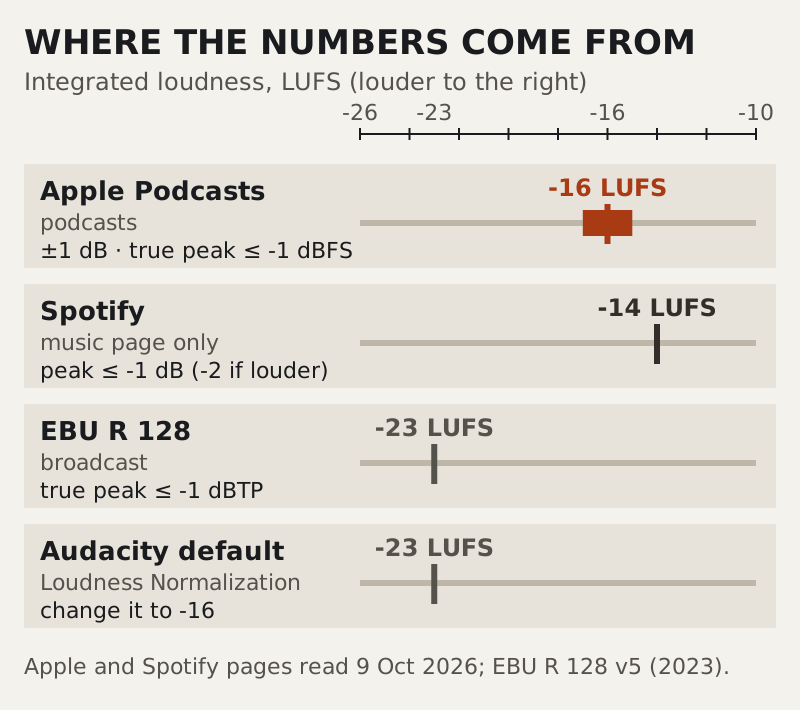
Here is what each source actually says, in the words that matter:
- Apple Podcasts: integrated loudness around -16 LKFS, plus or minus 1 dB, with true peak not exceeding -1 dBFS, measured per ITU-R BS.1770-5. Apple also strongly recommends AAC over MP3, at 64 to 128 kbps for mono or 128 to 256 kbps for stereo in an RSS feed.
- Spotify: tracks are normalised to -14 LUFS by default, with listener settings for Loud (-11) and Quiet (-19). Keep true peak below -1 dB, or below -2 dB if your master is louder than -14. This is the music page. We found no podcast-specific loudness spec from Spotify.
- EBU R 128: -23 LUFS with a maximum true peak of -1 dBTP. That's the European broadcast standard, written for TV and radio, not for earbuds on a train.
- YouTube and Amazon Music: we found no published podcast loudness target from either, so we don't quote one.
The broadcast figure matters for one practical reason: it's the default in Audacity. Its Loudness Normalization effect starts at -23 LUFS, and if you click OK without changing it, your episode comes out 7 LU quieter than Apple's target.
-16 or -14: which one to pick
Pick -16. It's the number Apple publishes for podcasts, and its true-peak rule is easy to meet. Mastering to -14 because a music streamer normalises music there buys you nothing certain for a podcast, because Spotify publishes no podcast target to aim at. What -14 does do is make the true-peak ceiling harder to hold: Spotify's own page asks for peaks below -2 dB once a master is louder than -14.
There's a practical argument for -16 as well. Spoken word sits more comfortably with some headroom. Pushing a voice up to -14 can mean more limiting, and heavy limiting is where speech starts to sound squashed and tiring over an hour. If you publish the same file everywhere, -16 with peaks at or below -1 dBTP is the master that meets the only podcast spec on the table.
Measure it free
You can't fix what you haven't measured, and the waveform in your editor won't tell you integrated loudness. Two free options cover it.
A free loudness meter
Youlean Loudness Meter's free version is $0 and never expires. It shows integrated loudness, true peak, loudness range and a handful of other readouts, runs as a standalone app or as a VST, VST3, AU or AAX plugin, and works on Windows and macOS. The free version includes film, TV and gaming presets such as EBU R 128; the streaming presets, Apple Podcasts and Spotify among them, are in the paid Pro version. You don't need them: set your eye on -16 integrated and -1 true peak and read the numbers directly. Checked on the vendor's page on 10 Oct 2026.
A service that measures and fixes in one pass
Auphonic's free account covers 2 hours of audio each month, and hours you don't use don't carry over. You set an integrated loudness target and a maximum true peak, -16 LUFS is among the targets its help pages list, and its true peak limiter oversamples 4x to catch the peaks between samples. On our usual assumption of 60-minute episodes, that monthly allowance covers two finished episodes. It's a good way to check your manual master against a second opinion.
Hit it in Audacity, step by step
Audacity is open source, costs nothing and runs on Windows, macOS and Linux. Do your cleanup and editing first; loudness is the last thing you touch before export, because every edit after it moves the number.
- Select the whole episode. Loudness normalisation works on what's selected, so select everything you'll publish, intro and outro included.
- Open Effect, Volume and Compression, Loudness Normalization. Set the mode to Perceived loudness and change the target from its default of -23 to -16 LUFS.
- Leave "Treat mono as dual mono (recommended)" switched on for a mono voice track. It's on by default and only appears in Perceived loudness mode. It measures a mono track as if the same signal were on both channels, which is how it will be heard on a stereo player.
- Apply a limiter. Effect, Volume and Compression, Limiter. In Audacity 4 its Output control defaults to -1 dB and its Threshold to -6 dB (manual read 10 Oct 2026). Leave Output at -1 dB or a touch lower, because a limiter that reads stored samples can miss the peaks that form between them.
- Measure the export, not the project. Export the file you'll publish, open it in a free meter, and read integrated loudness and true peak. If the meter says -16 and the true peak is at or below -1, you're done.
Hit it in Descript, and where Adobe fits
If you edit in Descript, you don't need a separate normalisation pass. Choose Local export as the destination, which Descript's help page says is where the full format, bitrate and loudness options live, then set Normalize volume. The choices are Off, Peak, -14, -16, -18, -23 and -24 LUFS. Pick -16. Peak normalisation is a different thing: it raises the file until the loudest sample touches full scale, which says nothing about how loud the episode sounds.
Two cautions. Descript's help page doesn't say what true-peak ceiling its export holds, so measure the exported file in a free meter before you upload it. And Descript Free gives one hour of media a month per editor (as of 9 Oct 2026), so a weekly hour-long show runs out of room in the first week.
Adobe Podcast Enhance is a cleanup tool, not a loudness tool. Its features page lists no loudness target, and the free tier takes files up to 30 minutes long, one at a time, with an hour of enhancement a day. Treat it as the cleanup station in the chain below: enhance first, then normalise and limit in Audacity or Descript, because cleanup changes the level you'd otherwise have set.
True peak and why -1 dBTP
A sample peak is the highest value stored in the file. A true peak is the highest level the waveform reaches once it's turned back into continuous sound, and it can sit between two samples, higher than either of them. Most of the time the difference is tiny. With heavily limited audio, it isn't.
Lossy encoding makes it worse. When your WAV master becomes an AAC or MP3 file, the encoder reshapes the waveform slightly, and peaks that sat just under 0 dBFS in the WAV can end up over it in the encoded file. That's clipping your listener hears and you never did. A -1 dBTP ceiling, which Apple, Spotify and EBU R 128 all ask for, is the headroom that keeps an encoded file clean. Measure true peak on the encoded file you upload, not on the WAV.
The chain, start to finish
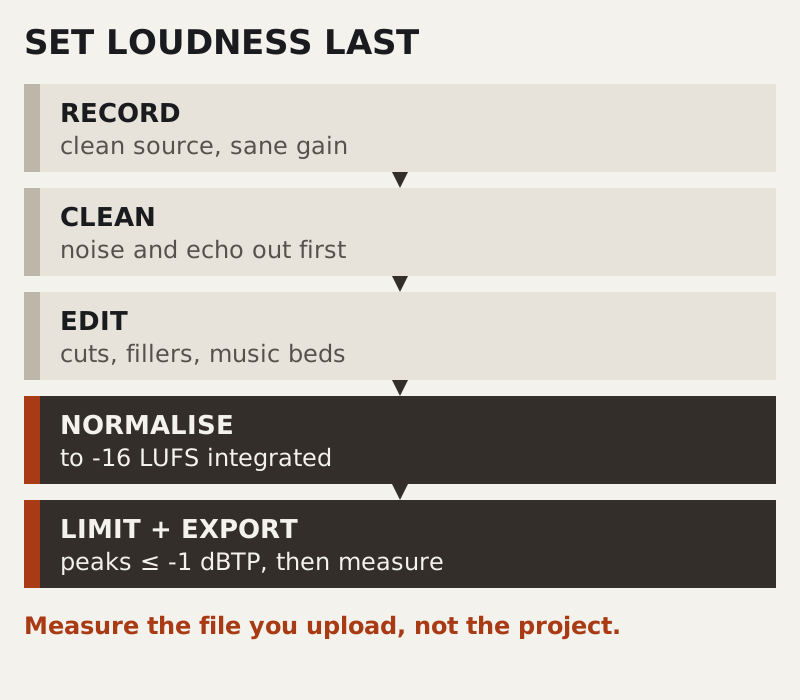
Loudness only holds if nothing changes the level after you set it. That's why it comes at the end of the chain, after the cleanup and edit work our order-of-operations guide walks through. Noise removal changes loudness, because removing a fan's hum takes energy out of the file. Cutting takes out pauses and changes the average. Even a music bed added late moves the integrated figure. Set -16 last, limit, export, measure.
If the cleanup station is where most of your time goes, our background noise guide covers the free and paid routes, and the Descript Studio Sound workflow covers doing cleanup and edit in one place.
Edge cases
Mono or stereo
A single voice recorded on one mic is mono, and Apple's lower bitrate band (64 to 128 kbps) is for mono files. Keep the "dual mono" option on in Audacity so the measurement reflects how the file plays back. If you mix in stereo music, export stereo and use Apple's stereo band.
Shows with loud music beds
Integrated loudness is an average across the whole file, so a long, loud music intro pulls it up while the voice stays put. If your voice sounds quiet at -16, check whether the music is using up the average, and bring the beds down rather than limiting the voice harder.
Video podcasts
YouTube publishes no podcast loudness target we could find. Most shows export one master and use it everywhere; -16 LUFS with -1 dBTP is a reasonable place to start until a platform tells you otherwise.
Questions we get
What LUFS should a podcast be?
-16 LUFS integrated, with true peak no higher than -1 dBTP. That's Apple Podcasts' published requirement, with a tolerance of plus or minus 1 dB, measured per ITU-R BS.1770-5, as of 9 Oct 2026.
Is -14 LUFS right for podcasts on Spotify?
-14 LUFS is Spotify's default normalisation level from its music guidance on Spotify for Artists. That page doesn't mention podcasts, and we found no Spotify podcast loudness spec. A -16 master with peaks at or below -1 dBTP meets Apple's spec and stays within Spotify's peak advice.
What's the podcast loudness standard?
There isn't one law. Apple's -16 LKFS with a -1 dBFS true-peak ceiling is the published podcast target from a major directory. EBU R 128 sets -23 LUFS for broadcast, which is far quieter than podcast listeners expect on a phone.
How do I set -16 LUFS in Audacity?
Select the whole episode, open Effect, Volume and Compression, Loudness Normalization, choose Perceived loudness and type -16 in place of the -23 default. Then run the Limiter from the same menu with its Output at -1 dB or slightly lower, export, and measure the exported file.
How can I measure LUFS for free?
Use a free loudness meter such as Youlean Loudness Meter's free version, which shows integrated loudness and true peak as an app or plugin on Windows and macOS. Auphonic's free account also processes 2 hours of audio a month to a target you set.